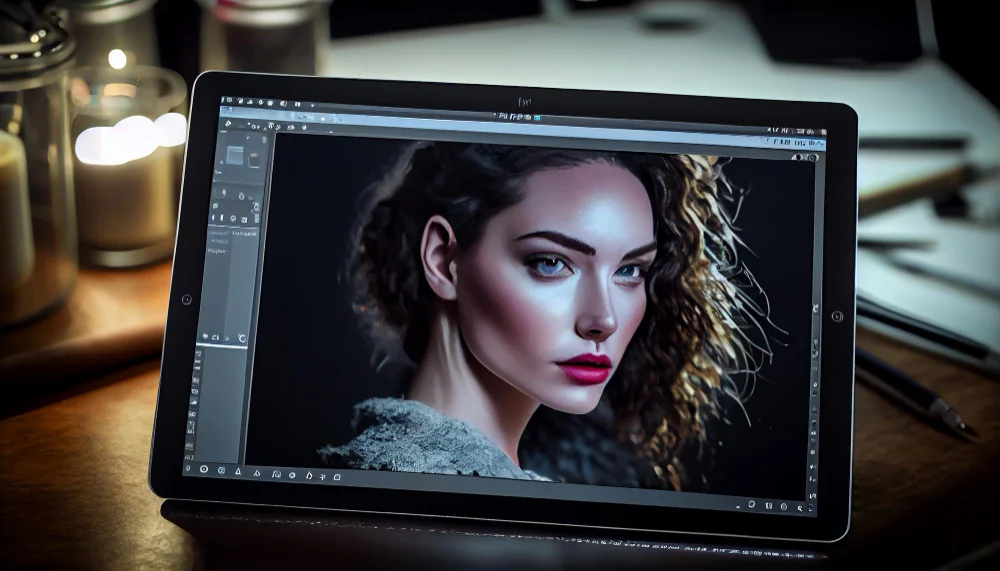
Printing photos is one of the best ways to preserve memories in a physical form. Whether it is a family portrait, travel photo, or creative shot, a high-quality print can bring images to life in a way screens cannot. However, many people struggle with poor print quality due to low-resolution images. Blurry edges, pixelation, and lack of detail often appear when an image is not properly prepared before printing.
Understanding how to enhance photo resolution before printing is essential if you want clear, sharp, and professional results that truly reflect your original image.
What Photo Resolution Means and Why It Matters
Photo resolution refers to the number of pixels in an image. More pixels mean more detail, while fewer pixels result in blurry or pixelated prints when enlarged.
On digital screens, low-resolution images can still look acceptable because screens are small and self-correcting. However, printers are different. They convert pixel data into physical dots, which makes resolution extremely important for clarity and sharpness.
If an image does not contain enough detail, the printed result will look soft, stretched, or unclear.
Check Image Resolution Before Editing
Before enhancing any photo, it is important to check its current resolution. This helps you understand how much improvement is required.
You can check image properties by viewing details such as pixel dimensions (for example, 1200×800 pixels).
For high-quality printing, most professionals recommend at least 300 DPI (dots per inch). Anything lower may result in reduced sharpness, especially for larger prints.
If your image falls below this level, enhancement becomes necessary before printing.
Start with a High-Quality Original Image
The foundation of a good print is a strong original photo. If the starting image is poor, even advanced editing cannot fully fix it.
When capturing photos, keep these tips in mind:
- Use proper lighting to avoid shadows and noise
- Avoid digital zoom, as it reduces quality
- Keep the camera stable to prevent blur
- Use the highest resolution setting available
A good original image makes the entire enhancement process easier and more effective.
Upscale the Image Carefully
Upscaling is the process of increasing image size while maintaining quality. Modern tools use intelligent algorithms to add new pixels based on surrounding details.
This helps improve clarity when preparing images for larger prints such as posters or wall frames.
When upscaling, avoid making extreme size increases at once. Gradual adjustments preserve more detail and reduce distortion.
Improve Sharpness Without Overdoing It
After resizing or upscaling, images may lose some sharpness. Adjusting sharpness helps restore clarity and define edges more clearly.
However, too much sharpening can make images look artificial or harsh.
A balanced approach works best:
- Apply small adjustments instead of large changes
- Focus on important subjects like faces or key objects
- Zoom in while editing to check fine details
This ensures the final printed image looks natural and clean.
Reduce Noise for Cleaner Prints
Noise appears as grainy or speckled texture, often caused by low light or high ISO settings. While it may not be very visible on screens, it becomes more noticeable in printed photos.
Using noise reduction tools helps smooth out these imperfections while preserving important details.
The goal is to create a clean and balanced image without losing texture or depth.
Adjust Color and Contrast Properly
Resolution alone does not guarantee a good print. Color balance and contrast also play a major role in how the final image appears.
Before printing, make sure:
- Colors look natural and not overly saturated
- Brightness levels are balanced
- Shadows and highlights are well controlled
Proper adjustments enhance depth and make printed images more visually appealing.
Crop Without Losing Important Detail
Cropping helps improve composition, but it can also reduce resolution if overused.
To maintain quality:
- Only crop unnecessary areas
- Avoid cutting too much of the original image
- Keep the subject well-centered and clear
Always check final dimensions after cropping to ensure the image still meets printing standards.
Choose the Right File Format
File format affects how much detail is preserved. Some formats compress images and reduce quality over time.
For printing purposes, use:
- PNG for high detail
- TIFF for professional-level printing
- High-quality JPEG with minimal compression
Avoid repeatedly saving JPEG files, as each save can slightly reduce image quality.
Do a Test Print Before Final Output
Before printing in large sizes, it is always a good idea to create a small test print. This helps you evaluate sharpness, color accuracy, and overall quality.
A test print gives a more realistic view than a screen preview, which can sometimes be misleading.
Final Thoughts
Enhancing photo resolution before printing is not just about increasing image size. It involves careful adjustments, proper editing, and smart preparation to ensure the final output is sharp and visually appealing.
When done correctly, your images can look professional, detailed, and long-lasting in printed form.
Following a reliable photo printing guide helps ensure every step—from capturing the photo to final printing—is handled correctly for the best possible results.